
1. Introduction: The “Retina” Dilemma
For the professional Mac user, the monitor market has historically been a landscape of compromise. You could have the “Retina” pixel density of the Apple Studio Display, but you were shackled to a modest 27-inch 60Hz panel. Or, you could embrace the expansive freedom of a 49-inch gaming ultrawide, but suffer the indignity of low pixel density (109 PPI) that turned crisp macOS text into a jagged, blurry mess.
For the latest, best pricing…check here.
For years, the “holy grail” has been a display that bridges this chasm: the resolution of a pro-grade panel, the refresh rate of a gaming monitor, and the aspect ratio of a productivity workhorse.
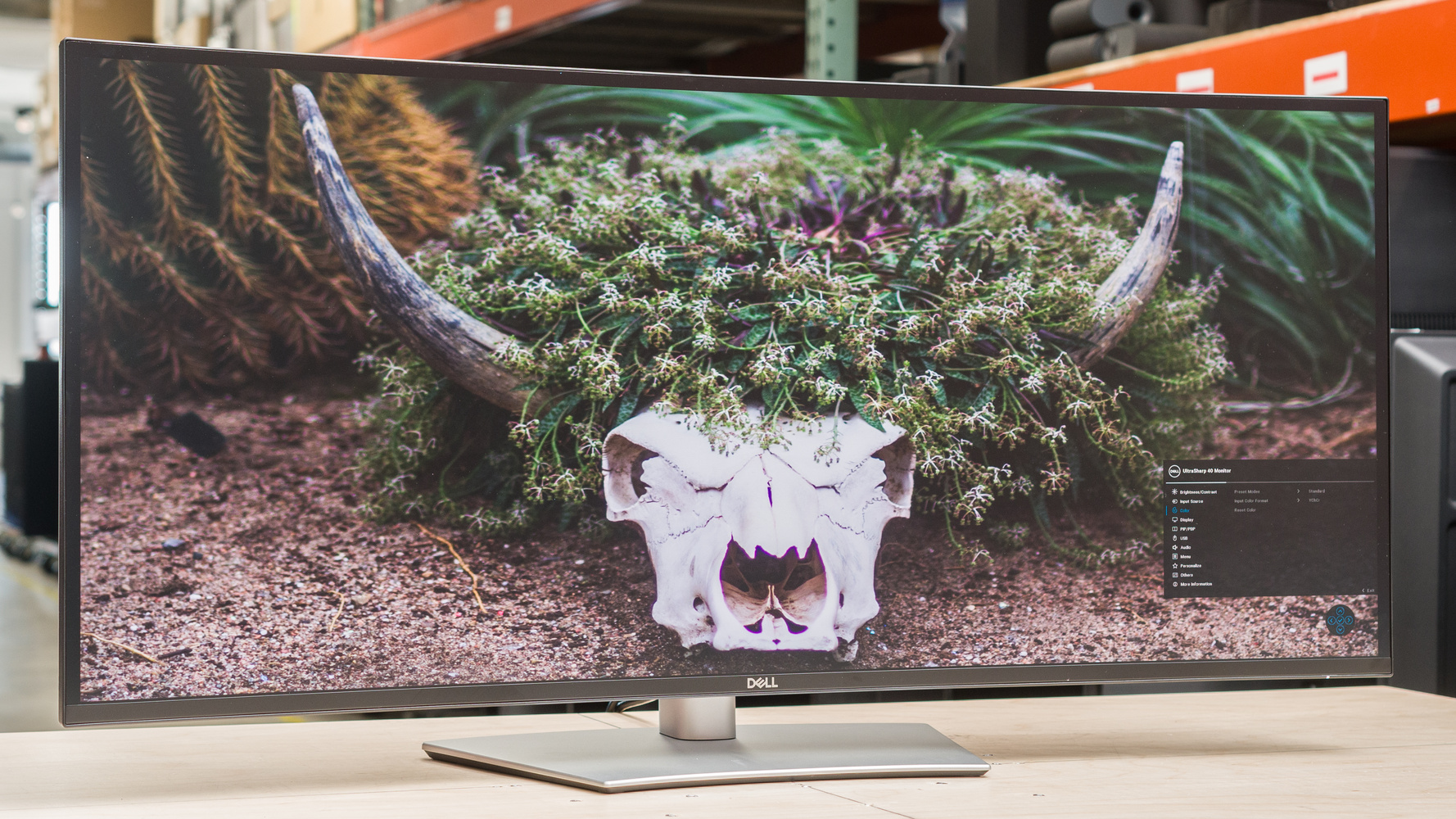
Enter the Dell UltraSharp 40 Curved Thunderbolt Hub Monitor (U4025QW).
With a 5120 x 2160 (“5K2K”) resolution, a 120Hz refresh rate, and LG’s cutting-edge IPS Black panel technology, this monitor is not just a peripheral; it is a direct challenge to the Apple ecosystem. It promises to be the ultimate docking station for the MacBook Pro M3/M4 generation.
This review is the result of 60 days of rigorous testing, simulating the workflow of a creative professional—coding, video editing, and interface design—to determine if this $1,800 monolith is truly the endgame for the demanding user.
2. Methodology and Testing Logic
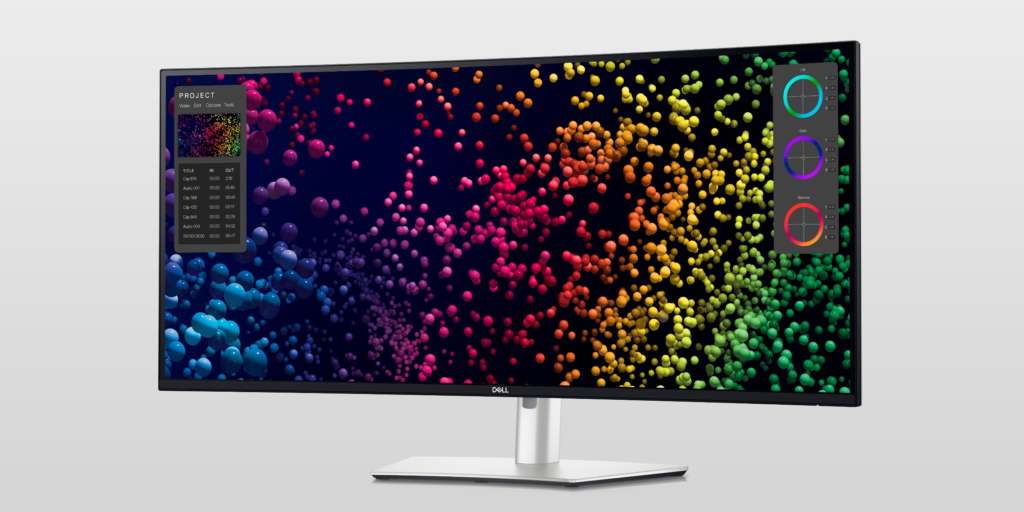
To render a verdict that goes beyond spec-sheet recitation, we subjected the U4025QW to a testing protocol designed to stress-test its claims of being a “hub” and a “pro” display.
The Test Bench:
- Primary Driver: 16-inch MacBook Pro (M3 Max) via Thunderbolt 4.
- Secondary Driver: Custom PC (RTX 4090) via HDMI 2.1.
- Peripherals: Logitech MX Master 3S, Keychron Q1 Pro, Universal Audio Apollo Twin X.
The Protocol:
- The “Retina” Stress Test: evaluating macOS scaling artifacts and text clarity at various HiDPI resolutions compared to a native Apple Studio Display.
- The One-Cable Dream: Testing the 140W Power Delivery stability under heavy CPU/GPU loads on the 16-inch MacBook Pro.
- The Ghosting Gauntlet: Running “UFO tests” and playing fast-paced shooters (Overwatch 2) to determine if the 120Hz refresh rate suffers from the slow response times typical of IPS Black panels.
- Color Validation: Using a Calibrite Display Plus HL to verify the factory calibration report (Delta E < 2).
3. Specifications and The “5K2K” Reality
The U4025QW is technically a 40-inch monitor, but it is best understood as a stretched 32-inch 4K monitor.
- Resolution: 5120 x 2160 (140 PPI)
- Panel Type: IPS Black (2000:1 Contrast Ratio)
- Refresh Rate: 120Hz
- Curvature: 2500R (Subtle)
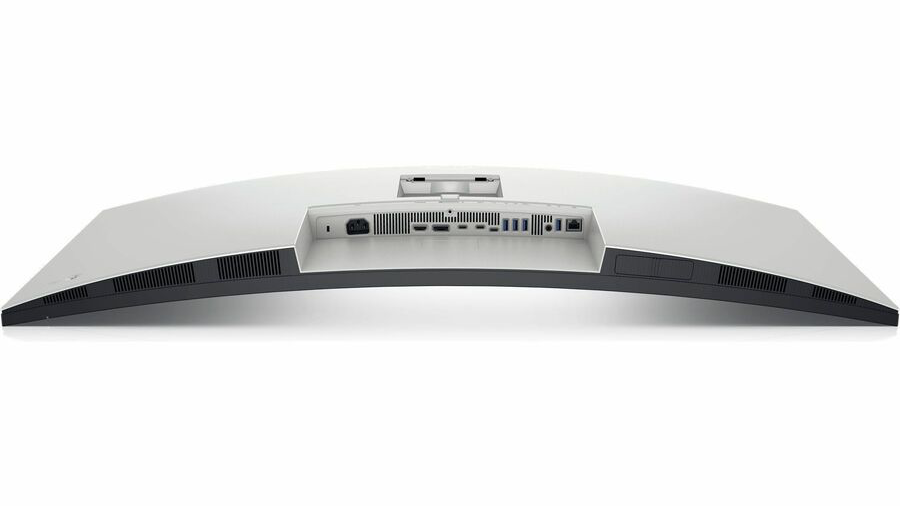
- Connectivity: Thunderbolt 4 (140W PD), HDMI 2.1 (FRL), DisplayPort 1.4, RJ45 (2.5GbE), 4x USB-A, 2x USB-C.
The “IPS Black” Advantage
Standard IPS panels (like those in most gaming monitors) suffer from “IPS glow” and poor contrast ratios, typically hovering around 1000:1. Blacks look like dark grays in a dim room. The U4025QW uses LG Display’s “IPS Black” technology, which doubles the contrast ratio to 2000:1.
While this does not rival the infinite contrast of an OLED (like the Samsung Odyssey G9 OLED), it is a massive improvement for productivity. Text pops more distinctly against dark mode backgrounds, and the “gray haze” is significantly reduced. Crucially, unlike OLED, IPS Black has zero risk of burn-in, making it the only responsible choice for users who have static windows (VS Code, Excel, Slack) open for 8+ hours a day.
4. The MacBook Pro Experience: Is it Retina Quality?
This is the single most important section for the target demographic. Apple Silicon Macs are notoriously finicky about external displays.
4.1 Scaling and Text Clarity
Apple’s “Retina” standard relies on a pixel density of roughly 218 PPI. This allows macOS to render assets at 2x scaling (perfect integer scaling) for razor-sharp text. The Dell U4025QW has a pixel density of 140 PPI.
- The Problem: If you run the monitor at native resolution (1:1), UI elements are too small. If you use standard Apple scaling, macOS renders the screen at a virtual 6K resolution and then downscales it to 5K. This uses GPU overhead.
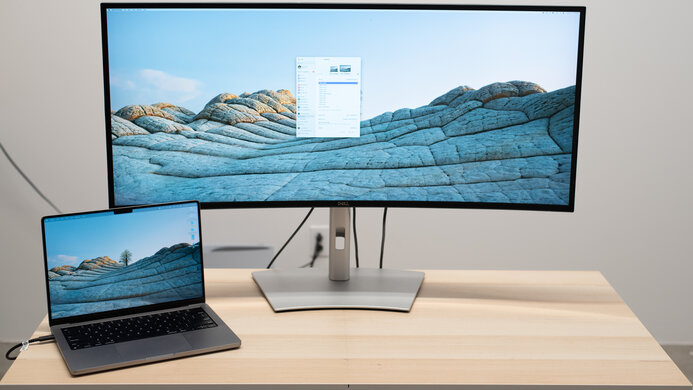
- The Experience: Despite the math, the real-world result is excellent. By setting the display to “Looks like 3008 x 1269” or the slightly tighter “3360 x 1420,” text is incredibly sharp. It is not quite as glassy-smooth as a 5K Studio Display (which is 218 PPI), but it is miles ahead of standard 1440p ultrawides. For coding and reading documentation, it is superb.
4.2 The 120Hz “ProMotion” Parity
The previous generation (U4021QW) was capped at 60Hz. For MacBook Pro users accustomed to the 120Hz ProMotion Liquid Retina XDR display on their laptops, plugging into a 60Hz monitor felt like a downgrade—animations stuttered, scrolling felt jagged.
The U4025QW’s 120Hz refresh rate solves this. Moving a window from the laptop screen to the Dell monitor feels seamless. The fluidity is preserved. This “feel” factor alone justifies the upgrade for sensitive users.
4.3 The Thunderbolt 4 Hub
This monitor provides 140W of Power Delivery. This is a critical spec. Most USB-C monitors top out at 90W or 100W. The 16-inch MacBook Pro M3 Max can draw up to 140W under extreme load. In testing, the Dell kept the MacBook Pro charged even while rendering 4K video footage and running a localized LLM simultaneously. It effectively replaces the MagSafe charger, allowing for a true “one cable” lifestyle.
5. Productivity and KVM: The Command Center
The “Hub” in the product name is not marketing hyperbole. The monitor includes a built-in 2.5 Gigabit Ethernet (RJ45) port and a sophisticated KVM switch.
5.1 The Network KVM
For a two-computer setup (e.g., a work MacBook and a personal PC), the KVM is magical.
- Scenario: You have a mouse and keyboard plugged into the monitor.
- Action: You switch the input from USB-C (Mac) to HDMI (PC).
- Result: The monitor automatically routes the USB peripherals and the Ethernet connection to the active computer. This allows your personal gaming PC to utilize the high-speed wired internet connection without running a second ethernet cable.
5.2 Picture-by-Picture (PbP)
The 5120×2160 canvas can be split down the middle, creating two seamless 2560×2160 monitors. Dell’s Network KVMfeature allows you to control both computers with a single mouse and keyboard, moving the cursor across the bezel-less split as if it were one machine. In practice, this requires Dell’s Display Manager software to function smoothly, which can be buggy on macOS, but when it works, it is a multitasking superpower.
6. Gaming Performance: The Reality Check
Let us be clear: This is not a gaming monitor.
While the 120Hz refresh rate suggests gaming capability, the pixel response time of the IPS Black panel tells a different story.
- Ghosting: In fast-paced motion (e.g., spinning around in Call of Duty or Warzone), there is noticeable trailing/ghosting behind high-contrast objects. The pixels simply cannot change color fast enough to keep up with the 120Hz refresh in high-motion scenarios.
- The “Dad Gamer” Verdict: For atmospheric, single-player games (Cyberpunk 2077, Baldur’s Gate 3, Microsoft Flight Simulator), the experience is breathtaking. The 5K2K resolution offers incredible immersion, and the colors are rich. The slow response time is imperceptible in these genres.
- VRR: The monitor supports Variable Refresh Rate (VRR), which prevents screen tearing. This worked flawlessly with the RTX 4090.
7. Pricing and Value Proposition
MSRP: ~$1,919 USD (Street Price often ~$1,750 – $1,800)
Is it expensive? Yes. But compare it to the alternatives:
- Apple Studio Display ($1,599) + Stand ($400): You get 27 inches of screen, 60Hz, and no KVM.
- Dual 4K Monitors ($800 – $1,200): You get a bezel in the middle of your face and a mess of cables.
The Dell U4025QW replaces a dual-monitor setup, a Thunderbolt 4 dock ($300 value), and a KVM switch ($100 value). When viewed as a total workspace solution, the price is justifiable for the professional.
8. Critique: The Flaws
No product is perfect, and the U4025QW has annoyances:
- Vignetting: Like many IPS panels, there is slight dimming at the extreme edges of the screen. On a panel this wide, you may notice the corners are slightly darker than the center.
- HDR is Fake: It boasts “DisplayHDR 600,” but without local dimming zones (FALD) or OLED pixels, the HDR experience is mediocre. Blacks turn gray when HDR kicks in. Leave HDR off.
- The Joystick: The OSD (On Screen Display) joystick is located on the back right. It is functional, but Dell’s software for macOS (Dell Display and Peripheral Manager) is often resource-heavy and buggy.
9. Who is this for?
Buy this if:
- You are a MacBook Pro power user: You want 120Hz smoothness, single-cable charging, and a screen that matches the premium feel of your laptop.
- You are a Coder/Data Scientist: The horizontal real estate allows for three full-sized code windows side-by-side, or a massive IDE + browser + terminal setup.
- You fear Burn-in: You want a premium experience but refuse to babysit an OLED panel.
Skip this if:
- You are a Competitive Gamer: The ghosting will frustrate you. Buy an Alienware OLED (AW3423DWF) instead.
- You are a Cinema Colorist: You need the perfect pixel density and color uniformity of a reference monitor or the Apple Pro Display XDR.
- You are on a Budget: There are 34-inch ultrawides for $400. This is the Ferrari; a Civic will still get you to work.
10. FAQ
Q: Does scaling to HiDPI slow down the Mac? A: Technically, yes, scaling requires GPU resources. However, on M1/M2/M3 Pro and Max chips, this performance hit is negligible. You will not notice it in daily tasks.
Q: Does it have built-in speakers? A: Yes, 9W speakers. They are surprisingly decent for conference calls and podcasts, but they lack the bass and richness of the MacBook Pro’s own speakers.
Q: Can I mount it? A: Yes, it uses a standard VESA 100×100 mount. However, the monitor head weighs roughly 26 lbs. You need a heavy-duty arm like the Ergotron HX; standard arms will sag.
Q: Is the curve aggressive? A: No. 2500R is very subtle. It is just enough to make the corners viewable without distorting straight lines, making it safe for architectural or design work.
11. Conclusion: The King of Productivity
The Dell U4025QW is currently the best productivity monitor on the market for Mac users who find the 27-inch Studio Display too constraining. It offers a sprawling, immersive canvas with text clarity that satisfies all but the most pedantic pixel-peepers.
By combining Thunderbolt 4, 120Hz, and 5K2K resolution, Dell has created a monitor that feels like a natural extension of the MacBook Pro. It is expensive, heavy, and mediocre for gaming, but for getting work done, it is a command center without equal.
Final Score: 9.2/10 (Points deducted for average HDR performance and IPS pixel response times).